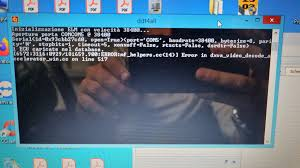

DDT4ALL is a popular diagnostic and configuration software used for Renault, Dacia, Nissan, and some other vehicles. Many car enthusiasts and technicians use this tool to access hidden vehicle functions, perform diagnostics, and modify electronic settings. Although the software is powerful, users often face connection problems while trying to connect ddt4all with their vehicle. These issues can occur because of incorrect drivers, poor adapter compatibility, software configuration mistakes, or communication problems between the vehicle and the computer. Understanding the causes of these connection issues is important because it helps users avoid frustration and ensures that the diagnostic process works smoothly. Troubleshooting DDT4ALL connection problems requires patience and a step-by-step approach because a single incorrect setting can stop the entire communication process between the software and the car.
Understanding How DDT4ALL Works
Before solving connection problems, it is important to understand how DDT4ALL communicates with a vehicle. The software uses an OBD2 adapter, usually based on ELM327 technology, to establish communication between the car’s ECU and the computer. The adapter transfers data from the vehicle to the software using USB, Bluetooth, or Wi-Fi connections. If any part of this communication chain fails, DDT4ALL will not connect properly. In many cases, users blame the software itself, but the actual problem is often related to the adapter, drivers, or operating system settings. Knowing the role of each component helps users identify where the issue is occurring and makes troubleshooting easier.
Checking Adapter Compatibility
One of the most common reasons for DDT4ALL connection failure is using an incompatible or low-quality OBD2 adapter. Many cheap ELM327 clones available online do not fully support the communication protocols required by DDT4ALL. Some adapters only support basic OBD2 functions and fail when advanced ECU communication is needed. To avoid this issue, users should purchase a reliable ELM327 adapter from a trusted manufacturer. USB adapters are generally more stable than Bluetooth or Wi-Fi versions because they provide a direct connection with fewer communication interruptions. If the software fails to connect, testing another adapter can quickly determine whether the problem is hardware related. A genuine adapter often solves connection problems immediately.
Installing Correct Drivers
Driver installation problems are another major cause of DDT4ALL connection issues. When using a USB adapter, the computer must recognize the device correctly before communication can occur. Many ELM327 adapters use FTDI or CH340 chipset drivers. If these drivers are missing or outdated, the adapter may appear in Device Manager with an error symbol or may not appear at all. Users should download the correct drivers from the official manufacturer website and restart the computer after installation. Once the drivers are installed properly, the COM port assigned to the adapter should be visible in Device Manager. DDT4ALL requires the correct COM port selection, so checking this information is essential before starting the software.
Selecting the Correct COM Port
Incorrect COM port selection is a simple but very common mistake. DDT4ALL communicates through the COM port assigned to the OBD2 adapter. If users select the wrong COM port inside the software settings, the connection attempt will fail instantly. To identify the correct COM port, users can open Device Manager and look under the “Ports” section. The adapter usually appears with a COM number such as COM3 or COM5. After identifying the correct port, users must select the same port inside DDT4ALL settings. It is also recommended to close other software programs that may already be using the same COM port because only one application can control the port at a time.
Verifying Vehicle Ignition Status
Many users forget that vehicle ignition status affects communication with DDT4ALL. Most ECUs require the ignition to be switched on before they can communicate with diagnostic software. If the ignition is off, DDT4ALL may display connection errors or fail to detect ECUs. In some vehicles, simply turning the key to the accessory position is enough, while others require the engine to be fully started. Testing both situations can help determine what the vehicle needs. Battery voltage is also important because low voltage can interrupt ECU communication. If the car battery is weak, charging it before using DDT4ALL may solve unstable connection problems.
Updating DDT4ALL Software
Outdated software versions can also create compatibility problems. Developers frequently release updates that improve adapter support, fix bugs, and add compatibility for newer vehicles. Users who experience repeated connection failures should check whether they are using the latest version of DDT4ALL. Updating the software can resolve hidden bugs that prevent communication with certain ECUs. In addition, users should ensure that the required database files are installed correctly because missing or corrupted files may stop the software from functioning properly. Reinstalling the software from a trusted source is often an effective solution when unexplained connection issues continue.
Troubleshooting Bluetooth and Wi-Fi Connections
Wireless adapters provide convenience but often introduce additional connection problems. Bluetooth adapters may fail because of pairing issues, unstable signals, or operating system restrictions. Wi-Fi adapters can experience IP conflicts or network interruptions. When using Bluetooth, users should ensure that the adapter is paired successfully with the computer before opening DDT4ALL. Removing old paired devices and reconnecting the adapter may help. For Wi-Fi adapters, checking the IP address settings is important because some adapters require manual configuration. Many users solve persistent connection problems simply by switching from wireless communication to a USB adapter, which provides a more stable and reliable connection.
Checking Firewall and Antivirus Settings
Sometimes the issue is not related to the adapter or software but to computer security settings. Antivirus programs and firewalls can block DDT4ALL from communicating with the adapter. This usually happens because the software attempts to access communication ports that security systems consider suspicious. Temporarily disabling the firewall or adding DDT4ALL to the antivirus exception list can help determine whether security software is causing the problem. If the connection works after disabling security settings, users should create permanent exceptions instead of leaving protection disabled permanently.
Testing with Another Vehicle or Computer
If troubleshooting steps do not solve the issue, testing the setup on another vehicle or computer can help identify the source of the problem. If DDT4ALL works on another car, the issue may be related to the original vehicle’s ECU or OBD2 port. If the software works on another computer, the original system likely has driver or configuration problems. This method helps isolate the problem quickly and prevents unnecessary replacement of working hardware. Sometimes the OBD2 port itself may be damaged or have blown fuses, preventing communication completely.
Conclusion
Troubleshooting ddt4all connection issues requires careful attention to every part of the diagnostic setup. Problems can originate from incompatible adapters, missing drivers, incorrect COM port settings, weak vehicle batteries, outdated software, or wireless communication failures. By checking each component step by step, users can identify the exact cause of the issue and restore proper communication between the software and the vehicle. Using a high-quality adapter, installing correct drivers, selecting the right COM port, and keeping both the software and computer updated are the most effective ways to prevent future connection problems. Patience and systematic troubleshooting are the keys to successfully using DDT4ALL without connection interruptions.